
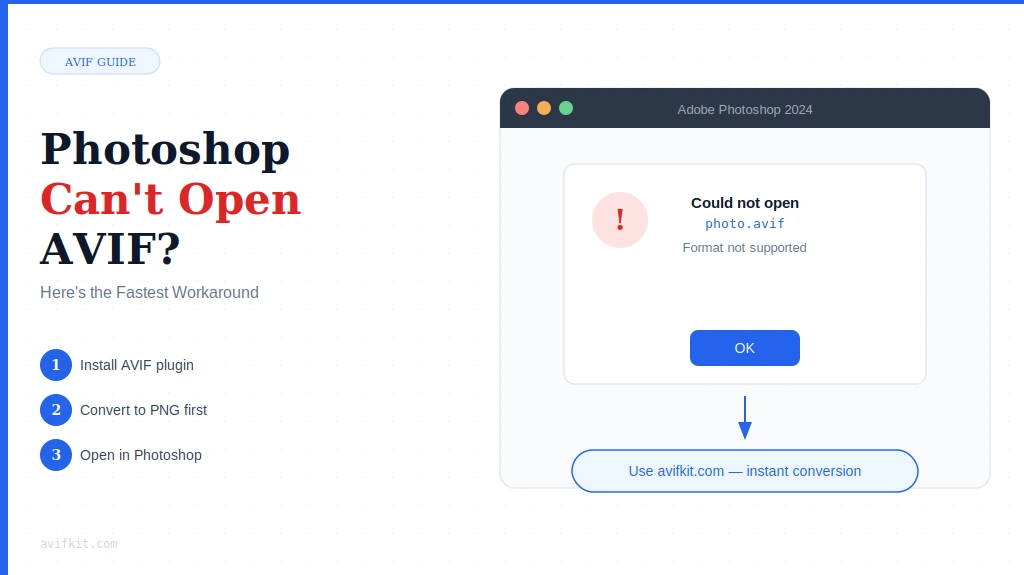
Photoshop 2024 added AVIF support. Sort of. It works with some AVIF files and crashes on others. Here's why it fails and the fastest way to actually open your AVIF images in Photoshop.
Why Photoshop's AVIF Support Is Broken
Adobe implemented basic AVIF reading in Photoshop 25.0 (October 2023 release). But their decoder is incomplete:
- Crashes on 10-bit color depth AVIF files
- Fails with certain chroma subsampling modes (4:2:2, 4:4:4)
- Doesn't handle HDR gain maps properly
- Ignores embedded ICC color profiles in some cases
- Can't save AVIF files - only read them
So even if you have the latest Photoshop, there's a good chance your AVIF file won't open. You'll just get "Could not complete your request" or a silent crash.
The Fastest Fix: Convert to PNG First
Instead of waiting for Adobe to fix their AVIF support (which might take years), just convert the AVIF to PNG. Photoshop has flawless PNG support.
Step-by-step:
- Go to AvifKit AVIF to PNG Converter
- Drag your AVIF file in
- Wait 2 seconds for conversion
- Download the PNG file
- Open the PNG in Photoshop - works every time
Why PNG instead of JPG:
If your AVIF has transparency, you must use PNG. JPG doesn't support alpha channels. Even if there's no transparency, PNG is still safer because it's lossless - you won't lose quality during conversion.
What About Photoshop Plugins?
There are third-party plugins that claim to add full AVIF support to Photoshop. I tested a few:
1. AVIF Import Plugin (paid, ~$15)
Works better than Adobe's native support, but still chokes on certain AVIF variants. Also, it's Windows-only. Mac users are out of luck.
2. WebP/AVIF Plugin Bundle (free)
Open-source option. Installation is finicky - you have to manually copy DLL files to Photoshop's plugin folder. When it works, it works. When it doesn't, good luck debugging.
The problem with all plugins:
They break with Photoshop updates. Adobe changes the plugin API, and suddenly your $15 plugin doesn't load anymore. Then you're waiting for the developer to push an update.
Converting to PNG takes 10 seconds and always works. No plugin maintenance, no compatibility issues.
Workflow for Photographers/Designers
If you frequently receive AVIF files from clients or stock sites, set up this workflow:
- Bookmark AvifKit's converter
- When you get an AVIF file, convert it to PNG immediately
- Work on the PNG in Photoshop
- Export your final work in whatever format the client needs (JPG, PNG, TIFF)
This way you're never blocked waiting for Photoshop to fix its AVIF support.
Frequently Asked Questions
Does Photoshop 2025 have better AVIF support?
Slightly improved, but still not reliable. Adobe added read support for more AVIF variants, but write support is still missing. Converting to PNG remains the most reliable method.
Can Lightroom open AVIF files?
Nope. As of Lightroom Classic 13.1 (January 2025), there's zero AVIF support. Adobe hasn't announced plans to add it either. Convert to DNG or PNG first.
Will converting AVIF to PNG lose quality?
AVIF is lossy compressed. PNG is lossless. So you're preserving whatever quality exists in the AVIF - you won't lose anything in the conversion. But you also can't magically recover quality that was already lost when the image was saved as AVIF.
Why doesn't Adobe just fix this?
AVIF is a complex format with many optional features. Full support requires implementing dozens of edge cases. Adobe's priority is features that affect paying customers - and right now, most professionals use JPG/PNG/TIFF, not AVIF.
Bottom Line
Photoshop's AVIF support is unreliable and incomplete. Converting to PNG first is faster than troubleshooting plugins or waiting for Adobe updates. Takes 10 seconds, works every time.
Need to open AVIF in Photoshop right now?
Convert to PNG in seconds. Preserves quality and transparency. Works with all Photoshop versions.
Convert AVIF to PNG